Fix Import Failures in 5 Minutes: EndNote RIS Export for Reviewers
Fix Import Failures in 5 Minutes: EndNote RIS Export for Reviewers
To export RIS from EndNote desktop, select your references, set the output style to RefMan (RIS) Export, then go to File > Export and save as Text, adding a .ris extension if needed. In EndNote Online, use the Format tab, click Export References, and pick the same output style. Either way, open the finished file in a plain-text editor afterward and confirm it contains TY - and ER - tags before you trust it.
TL;DR:
- RIS files exported from EndNote often default to a .txt extension and require manual renaming to .ris for compatibility with screening tools.
- Selecting only relevant references and verifying the presence of
TY -andER -tags ensures a clean, error-free RIS export.- Using the RefMan (RIS) Export style is crucial, as failing to apply this style can produce incomplete or malformed RIS files that screeners reject.
- Exporting small batches first and confirming key fields import correctly prevents large-scale errors during systematic reviews.
- RIS remains the preferred format for interoperability because most screening platforms parse its standardized tags automatically, unlike BibTeX or CSV.
Table of Contents
- How Do You Export RIS From EndNote Desktop?
- Exporting RIS From EndNote Online
- Why Do EndNote RIS Imports Fail, and How Do You Fix Them?
- Preflight Checklist Before You Export for a Systematic Review
- What Do Screening Tools Expect From an RIS File?
- A Reviewer’s Preflight Routine Worth Stealing
- From RIS Export to Structured Data: What Comes Next
- Sources
- FAQ
How Do You Export RIS From EndNote Desktop?
Start by narrowing your reference set. EndNote’s “Show Selected References” and “Show All References” toggle controls exactly which records get exported, so highlight only the ones you want before you touch the Export command. Reviewers screening a systematic review often export a curated group rather than an entire library, and getting this selection wrong is the fastest way to end up screening duplicates you already excluded.
Next, set the output style. Go to Edit > Output Styles and search for RefMan (RIS) Export. If it doesn’t show up in the list, click Select Another Style to pull it from EndNote’s full style catalog, or grab it directly from EndNote’s own Reference Manager (RIS) Export style page. This style is what generates the correct RIS tag structure. Skipping it and exporting under EndNote’s default style produces a file that looks like RIS but is missing tags your screening software expects.
With the style selected, the actual export takes four moves:
- Go to File > Export from the main EndNote menu.
- Choose Text (*.txt) as the “Save as type” in the export dialog, even though you’re producing an RIS file.
- Name the file and save it somewhere you’ll remember.
- Rename the extension from .txt to .ris if EndNote didn’t do it automatically.
Menu wording shifts slightly between EndNote versions and between Windows and macOS. Windows tends to bury Output Styles one level deeper in the Edit menu, while macOS surfaces it under EndNote’s Preferences panel in some releases. The core sequence, select, choose style, export, rename, stays identical across platforms.
Before moving on, open the saved file in Notepad, TextEdit, or a code editor and scan for TY - at the start of each record and ER - at the end. If those tags are missing or garbled, something went wrong upstream, not in the import tool you’re about to use.
Exporting RIS From EndNote Online
EndNote Online follows a different path than the desktop client, but it’s arguably simpler once you know where the option lives.
- Log into your EndNote Online library and open the group of references you want to export.
- Click the Format tab, then select Export References.
- Choose whether to export all references or just a selected subset, then pick RefMan (RIS) Export from the style dropdown, exactly as Clarivate’s own documentation describes for exporting to a Reference Manager database.
- Save the file when your browser prompts you.
Where that file lands depends on your browser. Chrome and Edge typically drop it straight into a Downloads folder without asking; Firefox and Safari may prompt you to choose a location depending on your settings. If the download arrives as references.txt instead of references.ris, rename the extension manually before importing it anywhere else. The content is identical either way, only the file label changes.
Why Do EndNote RIS Imports Fail, and How Do You Fix Them?
Most import failures trace back to one of a handful of predictable causes, and nearly all of them are fixable in under five minutes.
- The file is still .txt. EndNote frequently saves RIS exports with a .txt extension by default, and Babson College’s library guide flags this as the single most common reason a screening tool rejects an otherwise valid file. Rename it to .ris and try again.
- Stray line breaks or bad encoding. RIS is a line-oriented format, meaning each tag needs to sit on its own line in a consistent order. A wrapped line or a non-ASCII character introduced by a copy-paste can corrupt an entire record, so open suspect files in a plain-text editor and rejoin any line that got split mid-field.
- The RefMan (RIS) Export style isn’t installed. If it’s missing from your style list, open Style Manager or use Select Another Style to add it back.
- Duplicate or incomplete records. Run EndNote’s built-in deduplication and manually verify that authors, DOIs, and abstracts are populated before you export, not after.
Pro Tip: Keep one clean master library and export a fresh copy for each screening round rather than editing the same exported file repeatedly. It’s far easier to re-export than to hand-patch a corrupted RIS file at 11 p.m. before a deadline.
One more consideration: if you need to preserve rich formatting, italicized species names, subscripts in chemical formulas, EndNote’s native XML export retains that detail in ways plain-text RIS cannot. Use RIS for interoperability and screening; use XML when formatting fidelity matters more than portability.
Preflight Checklist Before You Export for a Systematic Review
A little discipline before you hit Export saves hours of downstream cleanup once references land in your screening tool.
- Deduplicate first. Run EndNote’s duplicate finder, then manually spot-check the results, since automated dedupe tools miss near-matches with slightly different formatting.
- Verify the core fields. Scan for title, author, year, DOI, and abstract on a sample of records. Missing abstracts are common with older or conference-only entries and will hurt any automated screening step later.
- Export only what you need. Use Show Selected rather than exporting your entire library, especially if that library mixes multiple project topics.
- Test-import a small batch first. Export five to ten records, import them into your actual screening tool, and confirm the mapping looks right before you commit the full set.
That last step matters more than it sounds. A test import of a handful of records catches formatting problems while the fix still takes two minutes, instead of after you’ve already imported 800 references and discovered the abstract field mapped to nothing.
What Do Screening Tools Expect From an RIS File?
Covidence, Rayyan, and most other screening platforms parse RIS by reading specific tags in order: TY for reference type, AU for author, TI for title, JO or JA for journal name, PY for publication year, AB for abstract, and DO for DOI. When one of these is missing or split incorrectly, the record either imports blank in that field or fails outright.
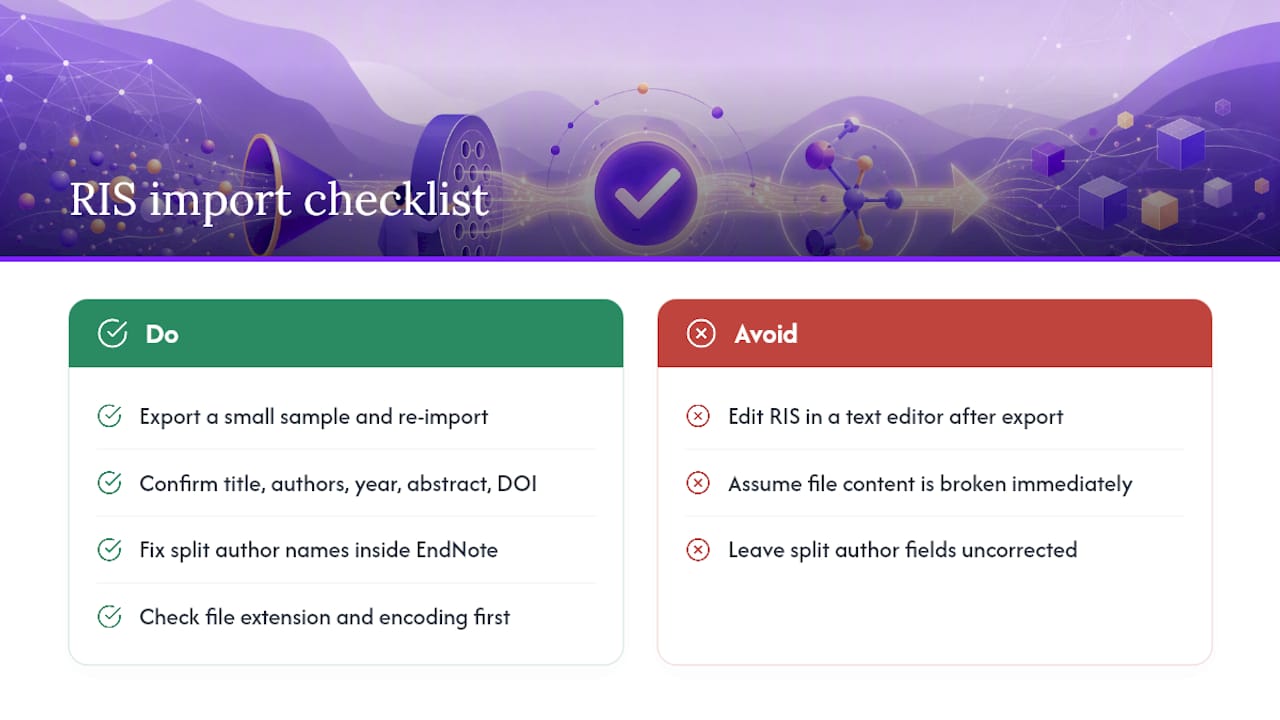
Split author names are a frequent culprit. If EndNote has an author entered as “Smith, J.A.” in one field, it usually maps fine, but co-author lists pulled from inconsistent database imports sometimes break across multiple AU lines incorrectly. Fix those inside EndNote before exporting, not after the fact in a text editor.
The fastest sanity check: export a small sample, import it, and confirm those five key fields, title, authors, year, abstract, DOI, populated correctly. If a tool rejects the file outright, check the extension and encoding before assuming the content itself is broken.
A Reviewer’s Preflight Routine Worth Stealing
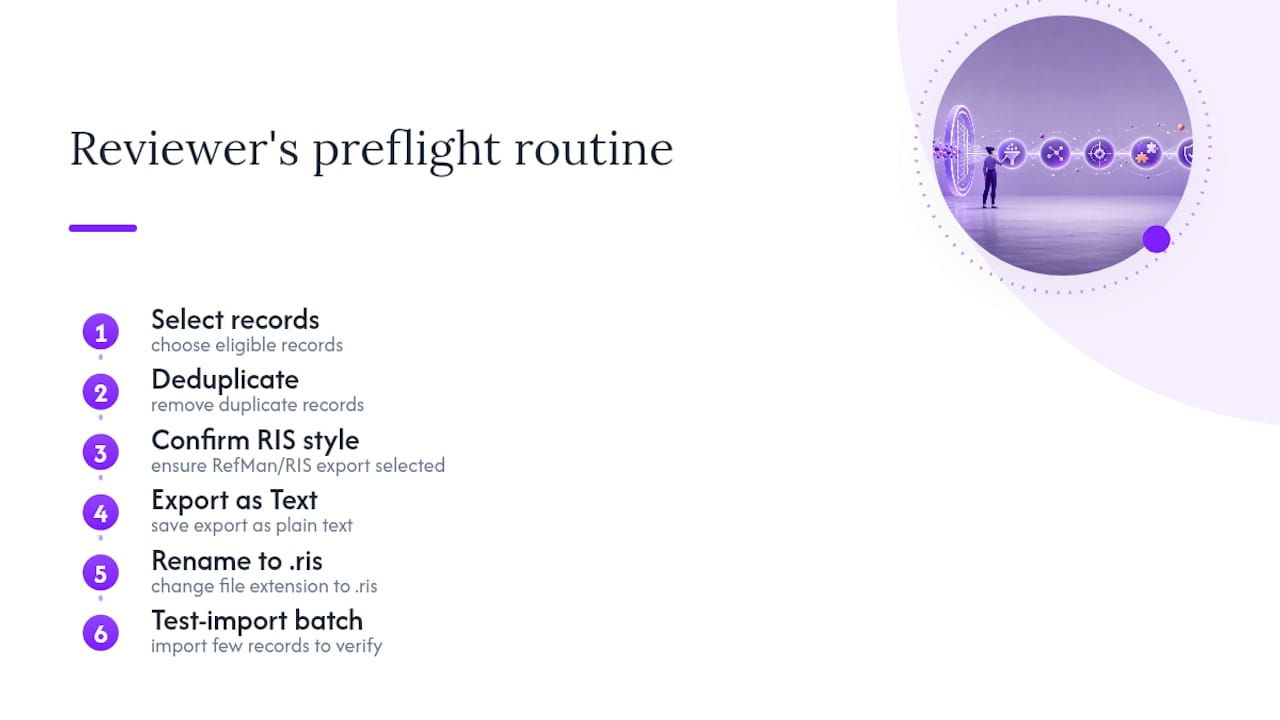
Every experienced systematic reviewer eventually builds their own version of the same six-step routine: select the right records, deduplicate, confirm the RefMan (RIS) Export style is active, export as Text, rename to .ris, then test-import a small batch before running the full set. Skipping any one of these steps is where most “why won’t this import” support tickets originate.
For reproducibility, especially in a published review that reviewers might later audit, it’s worth going one step further than most labs do. When formatting integrity matters more than portability, pull records via DOI-based retrieval or export EndNote’s native XML instead of RIS, since XML preserves fields RIS drops. And log the export itself: the date, the EndNote library version, the output style used, and ideally a checksum of the exported file. That record turns “we exported some references at some point” into an auditable step in your methods section, and it’s the difference between a review someone can replicate in two years and one nobody can reconstruct.
— Ubada
From RIS Export to Structured Data: What Comes Next
Getting a clean RIS file out of EndNote solves half the problem. The other half, reading hundreds of abstracts and deciding what to extract from each one, is where most review timelines actually stall. Papersynapse picks up right where your export leaves off: it imports RIS and CSV files directly from EndNote, Scopus, or Web of Science, then uses AI to read each abstract and populate the structured extraction fields you define, instead of you doing it manually line by line.

The platform reports processing large volumes of papers quickly, significantly reducing the time required for the extraction phase. It also builds PRISMA-compliant screening, custom tables, and visualizations into the same workflow, so your team isn’t juggling a spreadsheet, a screening tool, and a separate charting program. If your review team is tired of manually copying data out of abstracts one paper at a time, try importing your exported RIS file into Papersynapse and see what a structured extraction table looks like on your own dataset.
Sources
- Exporting references - EndNote - LibGuides at VU Amsterdam
- Exporting Citation Libraries from EndNote - Citing Sources & Citation Styles - LibGuides at Babson College
- The RIS file format: Tag reference, why exports differ, and how to repair one by hand - CASRAI
FAQ
What Is a .RIS File?
An RIS file is a plain-text, tag-based bibliography format where each reference is marked with codes like TY for type and AU for author, ending with an ER tag. It’s built for moving citations between different reference managers and screening tools without losing structure.
How Do I Make an RIS File in EndNote?
Select your references, set the output style to RefMan (RIS) Export, then go to File > Export and save as Text, renaming the file to .ris if EndNote doesn’t do it automatically. In EndNote Online, the equivalent path is Format > Export References with the same output style selected.
How Do I Export From EndNote Into Excel?
EndNote doesn’t export directly to Excel format, but you can export as RIS or Tab Delimited Text and open that file in Excel, though a straight RIS-to-Excel open will show raw tags rather than clean columns. For a structured table without manual reformatting, importing the RIS export into a tool built to parse those tags, like Papersynapse, gets you organized columns faster than reworking the file by hand.
Why Did EndNote Save My RIS Export as a .txt File?
This is a default behavior in EndNote’s export dialog, not an error. Rename the extension from .txt to .ris after saving, and most import tools will accept it without further changes.
Is RIS Better Than BibTeX or CSV for Systematic Reviews?
RIS is generally the safer choice for systematic reviews because most screening tools, including Covidence and Rayyan, are built to parse its tag structure directly. BibTeX conversions can lose fields since the two formats don’t map perfectly, and plain CSV lacks the standardized tags that let screening software auto-detect titles, authors, and abstracts reliably.