Quick Scopus RIS Import: Reviewer Tips and a PaperSynapse Alternative
Quick Scopus RIS Import: Reviewer Tips and a PaperSynapse Alternative
Export your selected Scopus results as an RIS file, then import that .ris into Zotero, EndNote, or Mendeley using each tool’s File > Import or Collect > Import flow. Most transfers finish in under five minutes. If something breaks, the culprit is almost always institutional access, a file association, or the 2,000 record Scopus export cap.
TL;DR:
- RIS exports from Scopus are limited to 2,000 records per file, requiring staged exports for larger search results.
- Properly selecting metadata blocks, especially abstracts and keywords, ensures comprehensive records during import into reference managers.
- Export failures often occur due to inactive institutional logins or incorrect file associations; reconnect via your library proxy for successful exports.
- When importing, verify that important fields like DOIs, author lists, and abstracts transfer correctly to avoid issues during screening.
- Using AI tools to process RIS files can automate data extraction and streamline screening, especially for large reviews exceeding manual capacity.
Table of Contents
- Step-by-Step: Export an RIS File From Scopus
- How Do I Import an RIS File Into Zotero, EndNote, or Mendeley?
- Why Won’t Scopus Let Me Export, and Other Fixes
- Planning Around Scopus Export Limits
- A Reviewer’s Note on Export Discipline
- Turn Your Imported Scopus Records Into Structured Data Faster
- Sources
- FAQ
Step-by-Step: Export an RIS File From Scopus
Getting a clean RIS file out of Scopus takes about a minute once you know where the controls live. Here’s the exact sequence:
- Run your search in Scopus and select the items you want. You can check individual results, select an entire page, or select all results in your set.
- Click Export at the top of the results list, then choose RIS under File types.
- Pick which metadata blocks to include. For most reference managers, select Citation information, Bibliographical information, and Abstract & keywords. Librarians consistently recommend keeping abstract and keyword data in the export because that text becomes essential during screening.
- Click Export and save the file with a name you’ll recognize later. Your browser typically drops it into the default Downloads folder unless you choose otherwise.
Scopus’s own export documentation confirms RIS sits alongside CSV and BibTeX as a standard output option, with the metadata checkboxes controlling exactly what lands in the file.
Pro Tip: If you’re pulling more than a page or two of results, add items to your Scopus Temporary List first, then bump your results-per-page setting to 200 before selecting. It cuts down on repetitive clicking and keeps your export batches organized by topic or search string.
How Do I Import an RIS File Into Zotero, EndNote, or Mendeley?
Each manager handles RIS a little differently, but none of them require you to touch the file’s raw contents.
Zotero: Go to File > Import, then choose the RIS file you saved from Scopus. Zotero recognizes the RIS format automatically, no manual mapping needed. During import, you’ll be prompted to place the items into a new collection, which is worth doing every time so you’re not hunting through your whole library later. The ASU library’s import guide walks through this exact flow if you want a visual reference.
EndNote: In EndNote Online, use Collect > Import References. In EndNote Desktop, it’s File > Import instead. Either way, set the Import Option to RefMan RIS. If that option isn’t visible in the dropdown, you’ll need to add it through “Select Favorites” first. UAB’s research guide on moving Scopus citations to EndNote covers this favorites step in detail, since it trips up a surprising number of first-time users. After import, check your Imported or Unfiled group. Items often land there by default rather than in your active library group.
Mendeley: Use File > Add Files, or the Import option depending on your version, and select the .ris file. Mendeley runs deduplication automatically, which is useful if you’re merging Scopus results with records from another database.
Regardless of which manager you use, run a quick check once the import finishes:
- Are DOIs present on most records?
- Did full author lists come through, or are they cut short?
- Are abstracts populated?
- Did the items land in the collection or group you expected?
Catching a mapping problem on 20 records is manageable. Catching it on 800 after you’ve already started screening is not.
Why Won’t Scopus Let Me Export, and Other Fixes
Most export and import failures trace back to one of four causes.
- No Export button, or it’s grayed out: You’re likely accessing Scopus without your institutional login active. Scopus routinely hides or blocks export options for unauthenticated sessions, so log in through your library’s proxy or connect through your campus VPN before trying again.
- Clicking the .ris file does nothing: Your operating system doesn’t know which program should open it. Right-click the file, choose “Open with,” and set your reference manager as the default. Alternatively, skip the double-click entirely and import from inside the manager instead.
- Fields are missing or authors got cut off: Go back into the Scopus export dialog and check that you selected the right metadata blocks. Some fields, particularly full author lists and certain funding details, simply aren’t carried over in RIS the way they are in CSV.
- Hitting a selection cap mid-export: Build a Temporary List and export in smaller batches rather than trying to force one giant file through.
Pro Tip: Keep your VPN or library proxy connection active for the entire export session, not just for logging in. Some sessions time out mid-download if you step away, and you’ll end up with a truncated file that looks fine until you try to import it.
Planning Around Scopus Export Limits
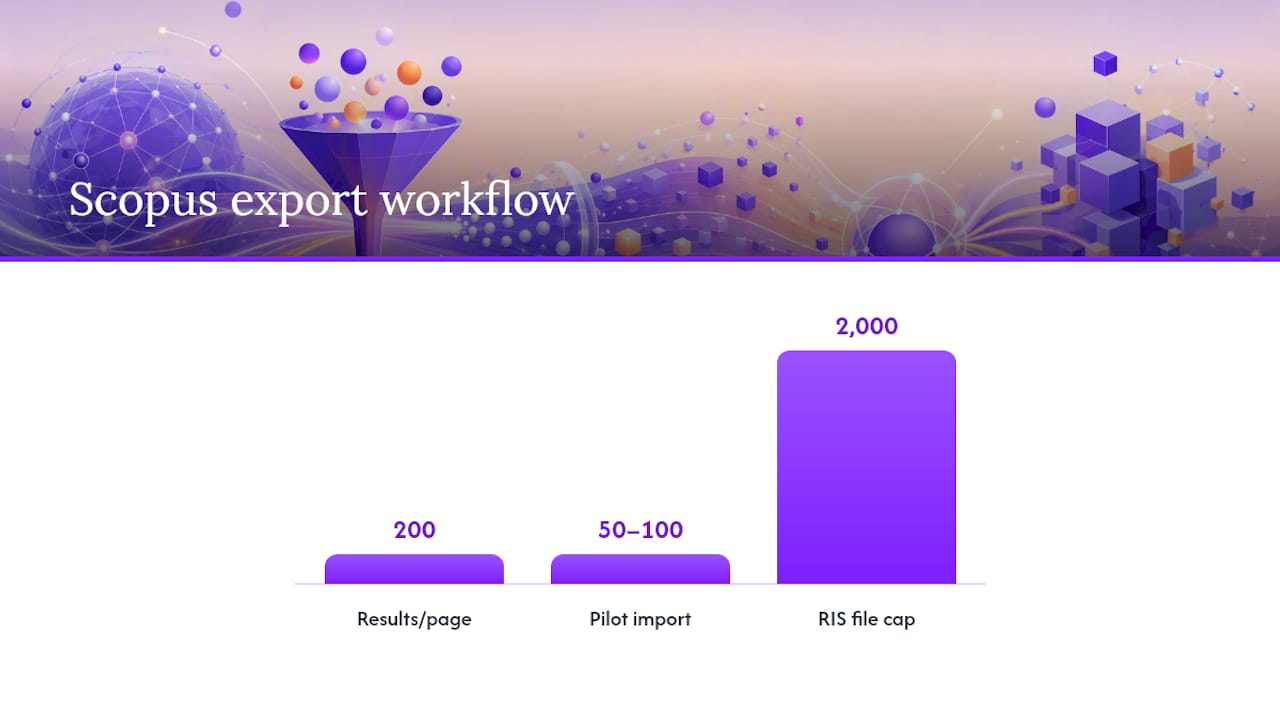
Scopus caps RIS exports at 2,000 records per file. For a systematic review pulling several thousand records, that means staging your exports. The practical approach: set results per page to 200, add each page to your Temporary List, and repeat until you’ve assembled the batch you need, then export in chunks under the cap.
Keep in mind RIS doesn’t carry everything CSV does. Full funding text and some affiliation detail can be thin or absent in RIS output, and author lists occasionally truncate after the first several names. If your review depends on complete funding or authorship data, check CSV instead.
Two habits save real time later:
- Name files clearly, something like
scopus_diabetes_20260214_part1.ris, so you’re not guessing which batch is which three weeks in. - Import a pilot batch of 50 to 100 records first to confirm field mapping before you commit to the full set.
A Reviewer’s Note on Export Discipline
Pilot imports feel like an extra step when you’re eager to start screening, but they catch field-mapping surprises while the fix is still cheap. Run 50 records through first, confirm your DOIs and abstracts came through intact, and only then commit to the full batch.
The bigger payoff shows up later. Keeping your metadata selection consistent across every database export, not just Scopus, makes deduplication and screening far more reliable when you’re merging sources. And once extraction and normalization enter the picture, an integrated tool cuts down on the manual reconciliation that eats reviewer time.
— Ubada
Turn Your Imported Scopus Records Into Structured Data Faster
Once your RIS file is sitting in Zotero or EndNote, the real work is still ahead: reading hundreds of abstracts and deciding what belongs in your review. Some platforms accept RIS files directly, so you can skip the reference manager step entirely if you’d rather move straight into extraction.

Instead of manually copying data points into a spreadsheet, some tools read each abstract with AI and populate a structured table you define, whether you need study design, sample size, outcome measures, or custom fields specific to your review. These tools may also handle PRISMA-compliant screening and label normalization, helping keep categories consistent across hundreds of papers instead of drifting the way manual coding often does. The Free plan lets you test RIS ingestion and extraction on your own dataset before deciding whether Pro or Ultra fits your review’s volume. Upload your Scopus export and see what your table looks like in a few minutes.
Sources
- How do I export documents from Scopus? | Scopus Support Center
- Ask a Librarian - ASU: How to import RIS into Zotero
- Move Citations from Scopus to EndNote (Online) — UAB Research Guides
FAQ
What Does “Export to RIS” Mean?
Exporting to RIS means saving your Scopus search results in a standardized, tagged citation format that most reference managers can read directly. It’s a plain text file with labeled fields like author, title, and journal, built specifically so bibliographic software can import it without manual reformatting.
How Do I Import a RIS File Into Zotero?
Save the .ris file from Scopus to your computer, then open Zotero and go to File > Import. Choose the file, and Zotero will recognize the RIS format automatically and offer to place the records into a new collection.
Why Can’t I Export From Scopus?
The most common reason is an inactive institutional login. Scopus hides or disables export options when you’re not authenticated through your library’s proxy or VPN, so reconnecting through your institution’s access point usually restores the Export button.
How Many Records Can I Export From Scopus at Once?
Scopus limits each RIS export to 2,000 records per file. For larger reviews, build a Temporary List and export in staged batches until you’ve covered your full result set.
Does RIS Include Everything I Need for a Systematic Review?
Not always. RIS exports from Scopus can omit or shorten certain fields, including full author lists and some funding text. If your review depends on that data, check the CSV export option instead.