Zotero RIS Export for Reviewers: Bypass the Web Cap of 100 Items
Zotero RIS Export for Reviewers: Bypass the Web Cap of 100 Items
Export RIS from Zotero by selecting your items or a collection in the desktop app, then going to File (or right-click) → Export → choosing RIS as the format → saving the .ris file. That covers the whole job for most researchers. The steps below walk through the exact clicks, plus how to handle web library limits, what actually survives the export, and how to check your imported records afterward.
TL;DR:
- Exported RIS files do not include PDFs or attachments and require manual transfer if those files are needed in subsequent workflows.
- RIS field mapping may result in minor formatting issues for author names, DOIs, or page ranges, so verifying exported records is recommended before use.
- Exporting from the web interface is limited to about 100 items; syncing the Zotero desktop app allows exporting the entire library without this cap.
- The RIS format is compatible with most reference managers and can be re-imported with a basic check of record count and data accuracy.
- Building a habit of exporting dated snapshots and performing quick spot checks reduces errors and improves systematic review accuracy.
Table of Contents
- How Do You Export RIS from Zotero? A Quick Checklist
- Where Are the Export Options in Zotero Desktop?
- Can You Export RIS Directly from the Zotero Web Library?
- What Does an RIS File Actually Contain?
- How Do You Import and Verify RIS Files Afterward?
- Why Isn’t My RIS Export Working? Common Fixes
- A Reviewer’s Note on Export Habits That Actually Save Time
- PaperSynapse: What Happens After You Export the RIS File
- Where to Learn More About Zotero Exports
- Sources
How Do You Export RIS from Zotero? A Quick Checklist
Here’s the fastest path from Zotero library to usable .ris file:
- Select the items you need: individual references, a collection, or “My Library” for everything.
- Right-click the selection and choose Export Items…, or use File → Export Library… for the whole thing.
- In the export dialog, pick RIS (RefMan) from the format dropdown. Leave Character Encoding on the default setting, or switch to UTF-8 if your citations include accented names or special characters.
- Uncheck Export Files and Export Notes. Neither transfers with a RIS export, so there’s no reason to leave them checked.
- Click OK, name the file, and save it somewhere you’ll find it again.
Pro Tip: Name the file with the collection name and export date, like “Diabetes_Screening_2026-03-14.ris”. When you’re running multiple screening rounds, this one habit saves you from opening three files to figure out which is current.
Where Are the Export Options in Zotero Desktop?
Zotero gives you two paths to the same dialog, and which one you use depends on what you’re exporting.
Right-click a collection or a set of selected items in the middle pane when you want a subset. Use File → Export Library… from the top menu when you want everything in your account, including subcollections and standalone items that don’t belong to any collection. Both paths land you in the same export dialog.
Inside that dialog:
- The format dropdown includes RIS, BibTeX, CSL JSON, Zotero RDF, and a few others. For most citation manager imports, RIS (RefMan) is the right pick.
- Character encoding defaults to a system setting, but switching to UTF-8 avoids garbled characters when your library has non-English names or diacritics.
- Export Files and Export Notes appear regardless of format, but they only do something for formats built to carry attachments, like Zotero RDF. Checking them for RIS doesn’t hurt, but it does nothing. RIS is a metadata format, full stop.
If you export citations from a database like Scopus or Web of Science before ever touching Zotero, the same RIS logic applies on the other end. Zotero’s own export guidance recommends RIS for citation-tool imports and CSV when you need to inspect or manipulate data in a spreadsheet.
Before a major screening round or a handoff to a new team member, export a dated snapshot of your library. It costs thirty seconds and gives you a clean rollback point if something goes wrong mid review.
Can You Export RIS Directly from the Zotero Web Library?
Yes, but only in small batches. Zotero’s web interface caps exports at roughly 100 items at a time, according to reports on the Zotero Forums. That’s fine for a quick reference check. It’s not fine for a systematic review with 800 abstracts waiting to be screened.
The workaround is straightforward:
- Install the Zotero desktop app if you haven’t already, and sign into the same account you use on the web.
- Run Sync (File → Sync, or the sync icon in the toolbar) to pull your full web or group library down to the desktop.
- Once synced, export from desktop using the steps above. There’s no item cap locally.
If sync stalls or items don’t appear, update the Zotero client to the latest version and confirm your account has the right permissions on any shared group library. If you don’t have desktop access at all, ask a library administrator for a direct data export, or have someone with permissions sync the group and export on your behalf.
What Does an RIS File Actually Contain?
RIS is a plain-text bibliographic exchange format. It carries structured fields like AU (author), TI (title), PY (publication year), and JO (journal name), which is exactly why it works across different reference managers and review platforms.
What it does not carry is just as important; if you need to convert PDFs related to your references, consider using a tool to convert PDFs to Markdown locally for easier file handling. RIS never exports PDFs or file attachments, even if you leave the Export Files box checked in the dialog. That checkbox only matters for formats designed to bundle attachments, like Zotero RDF. If your PDFs matter for the next stage of your workflow, you’ll need to sync them through Zotero directly or transfer the files manually.
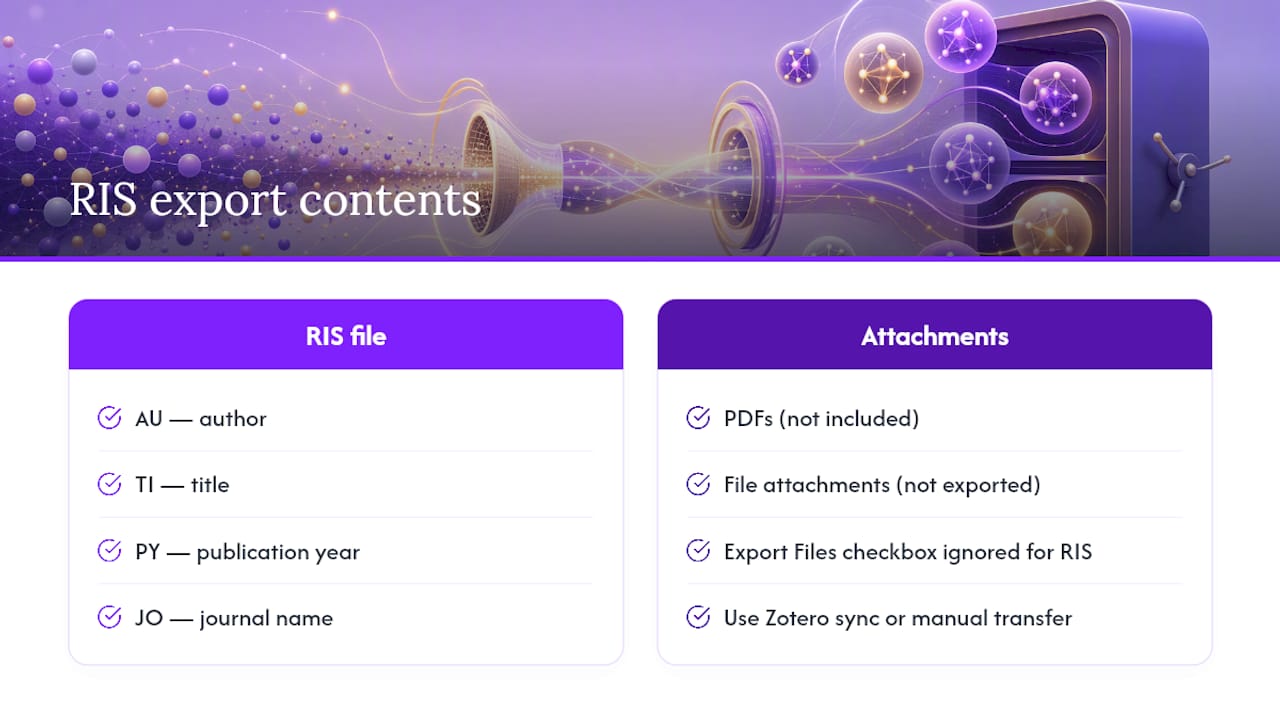
Field mapping isn’t always perfect, either. Author names with unusual formatting, DOIs, page ranges, and special characters can shift slightly when they cross from Zotero’s internal schema into RIS syntax. For a systematic review where every citation might get scrutinized in a supplementary table, that’s worth a five-minute check rather than an assumption. Open a sample of records and confirm the fields you care about most survived the trip intact.
How Do You Import and Verify RIS Files Afterward?
Most reference managers and review tools follow the same basic pattern: File → Import, or an upload button that points to your .ris file. EndNote, Covidence, Mendeley, and most systematic review screening platforms all accept RIS as a standard input format.
Once the import finishes, run through this checklist before you trust the data:
- Confirm the total record count in the new tool matches what you exported from Zotero.
- Open five or ten records at random and check author names, title, year, DOI, and page numbers against the originals.
- Reattach PDFs if the destination tool needs them, since RIS never carried them in the first place.
- If fields keep breaking or mapping oddly, try re-exporting as CSL JSON or BibTeX instead. Both carry richer metadata structures than RIS and sometimes survive translation between systems more cleanly.
A ten-minute spot check now beats discovering a missing DOI column three weeks into data extraction.
Why Isn’t My RIS Export Working? Common Fixes
Most export problems trace back to one of four causes.
- Export seems stuck or the app says it’s “saving to my library”: install and run the Zotero desktop client, then sync before trying again. This almost always means you’re working from the web interface, which has its own limits.
- Missing fields after import: open the .ris file in a plain-text editor like Notepad or TextEdit to inspect the raw AU/TI/PY lines directly, then re-export with UTF-8 encoding if something looks off.
- Garbled or broken characters: re-export using UTF-8, and confirm the tool you’re importing into actually supports that encoding on its end.
- Attachments didn’t come through: that’s expected. RIS cannot carry PDFs. Sync through Zotero or move the files manually instead.
A Reviewer’s Note on Export Habits That Actually Save Time
Export a dated snapshot before every screening round, not just at the end of the project. When you’re 400 abstracts deep and someone asks what changed between round two and round three, you’ll want that file. Keep a CSV alongside your RIS export for quick spreadsheet checks, since eyeballing a column of DOIs in Excel catches errors faster than scrolling through an import log. Build a five-minute sample-verification habit into every import and never skip it. Once a review scales past a few hundred papers, manual checking stops being realistic, and that’s the point to look at tools built for normalizing bulk imports.
— Ubada
PaperSynapse: What Happens After You Export the RIS File
Exporting the RIS file gets your citations out of Zotero. What happens next, sorting hundreds of abstracts, tagging relevance, pulling data into extraction tables, is where most systematic review timelines actually stall. The next step after exporting your RIS file involves sorting abstracts, tagging relevance, and pulling data into extraction tables, which is often where systematic review timelines stall.

Once you’ve followed the export steps above, you can drop that .ris or CSV file straight into PaperSynapse. The platform reads abstracts with AI, fills structured extraction tables automatically, and normalizes labels across papers, cutting out the manual reading and recategorizing that eats weeks on a large review. This isn’t a replacement for Zotero. Zotero still manages your citations and library. This platform assists with extraction and screening work starting from your exported file and is designed to handle volumes that make manual review challenging. If your review is running past a couple of hundred papers, check what PaperSynapse can do with your exported file before you start building extraction spreadsheets by hand.
Where to Learn More About Zotero Exports
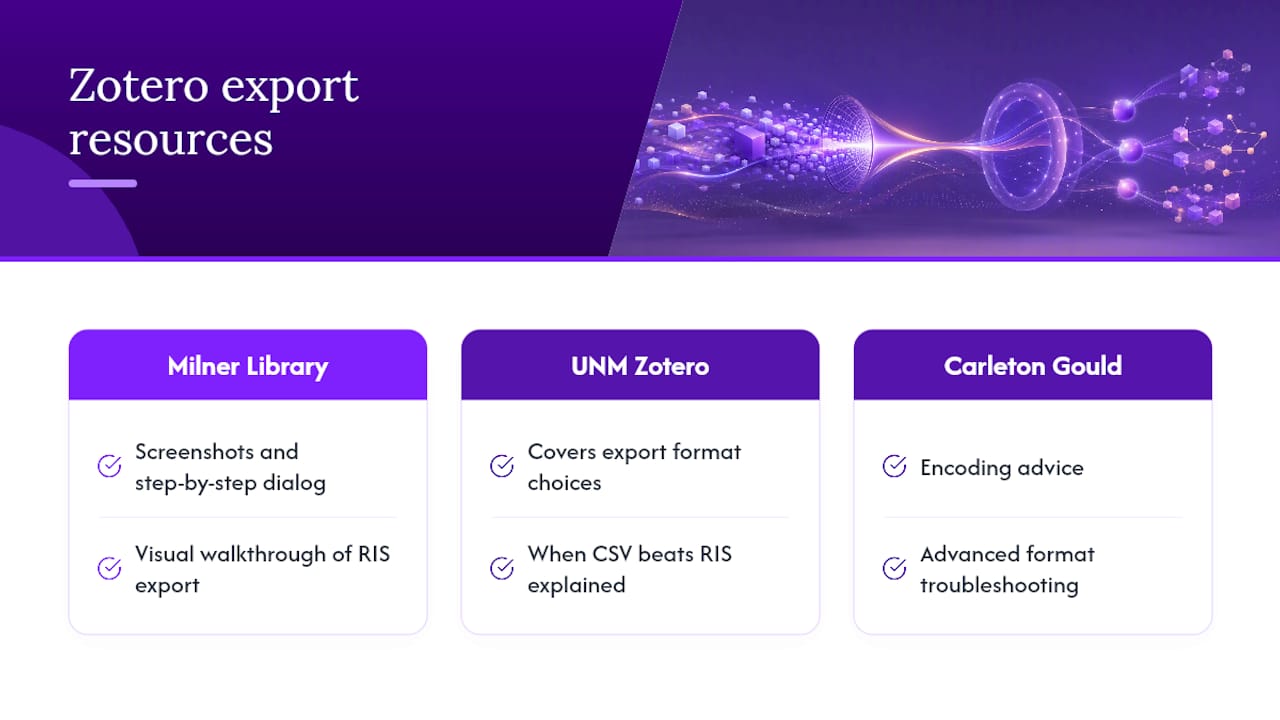
For screenshots and step-by-step detail beyond this guide, Illinois State University’s Milner Library RIS export guide walks through the dialog visually. The University of New Mexico’s Zotero tutorial covers export format choices in more depth, including when CSV beats RIS. For encoding and advanced format troubleshooting, Carleton’s Gould Guides page on Zotero is worth bookmarking.
Sources
- Export an RIS file - Zotero - Guides at Milner Library, Illinois State University
- Export References - Zotero: A Beginner’s Guide & Tutorial
- how to export RIS file from a web library/ what is the collections pane - Zotero Forums